A shading modelshading modelshading model determines how LuciadCPillar shades a 3D object: how the map’s light and environment map turn the object’s material data into the pixels you see. This article explains the available shading models. Physically based rendering (PBR) is the default shading model, so it also covers what PBR needs to work and how you tune a PBR material.
You can set a shading model in two places:
-
On a
MeshStyleMeshStyleMeshStyle, for OGC 3D Tiles. See Styling mesh data. -
On the 3D icon draw command of a
FeatureCanvasFeatureCanvasFeatureCanvas, for 3D icons such as glTF assets. See Visualize glTF data.
Shading models have an effect on 3D maps only.
There are three options:
-
No shading model: the object keeps its plain albedo, that is, its texture or color.
-
SimpleShadingModelSimpleShadingModelSimpleShadingModel: diffuse lighting from the map’s light. -
PbrShadingModelPbrShadingModelPbrShadingModel: physically based rendering. This is the default.
// No shading at all: the mesh keeps its plain albedo and ignores the map's light.
auto unshaded = MeshStyle::newBuilder().shadingModel(nullptr).build();

// Simple diffuse shading: lit by the map's light, but without PBR materials or reflections.
auto diffuse = MeshStyle::newBuilder().shadingModel(SimpleShadingModel::newBuilder().build()).build();

// Physically based shading, the default: uses the asset's PBR materials, the map's light and its reflection map.
auto physicallyBased = MeshStyle::newBuilder().shadingModel(PbrShadingModel::newBuilder().build()).build();
// No shading at all: the mesh keeps its plain albedo and ignores the map's light.
var unshaded = MeshStyle.NewBuilder().ShadingModel(null).Build();
// Simple diffuse shading: lit by the map's light, but without PBR materials or reflections.
var diffuse = MeshStyle.NewBuilder().ShadingModel(SimpleShadingModel.NewBuilder().Build()).Build();
// Physically based shading, the default: uses the asset's PBR materials, the map's light and its reflection map.
var physicallyBased = MeshStyle.NewBuilder().ShadingModel(PbrShadingModel.NewBuilder().Build()).Build();// No shading at all: the mesh keeps its plain albedo and ignores the map's light.
var unshaded = MeshStyle.newBuilder().shadingModel(null).build();
// Simple diffuse shading: lit by the map's light, but without PBR materials or reflections.
var diffuse = MeshStyle.newBuilder().shadingModel(SimpleShadingModel.newBuilder().build()).build();
// Physically based shading, the default: uses the asset's PBR materials, the map's light and its reflection map.
var physicallyBased = MeshStyle.newBuilder().shadingModel(PbrShadingModel.newBuilder().build()).build();No shading model
Passing null as the shading model disables shading altogether.
The object is painted with its plain albedo, and the map’s light doesn’t affect it.
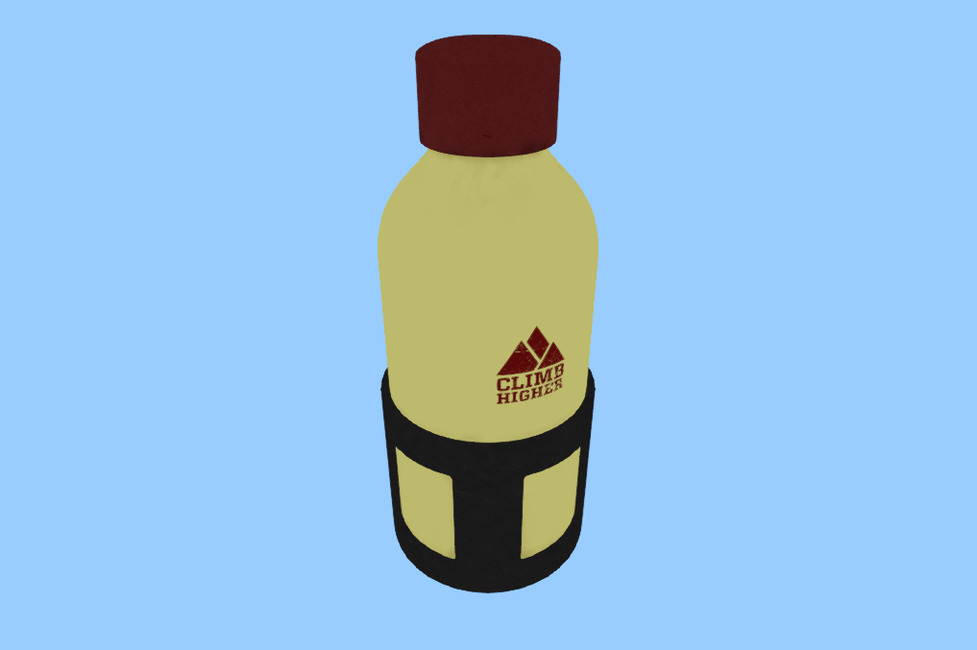
Leaving the shading model unset keeps the default. Choose null if the object must keep exactly the colors it was authored
with, for example a mesh with a texture that already has its shadows and highlights painted in.
OGC 3D Tiles reality meshes are the common case: their textures already contain the lighting at the moment of capture, so
they usually look
best with no shading model.
Simple shading model
A SimpleShadingModelSimpleShadingModelSimpleShadingModel applies non-physically-based lighting.
The object is lit by the map’s light, but only its diffuse contribution is computed: metallic and roughness material properties
and
reflections from the environment map are ignored.
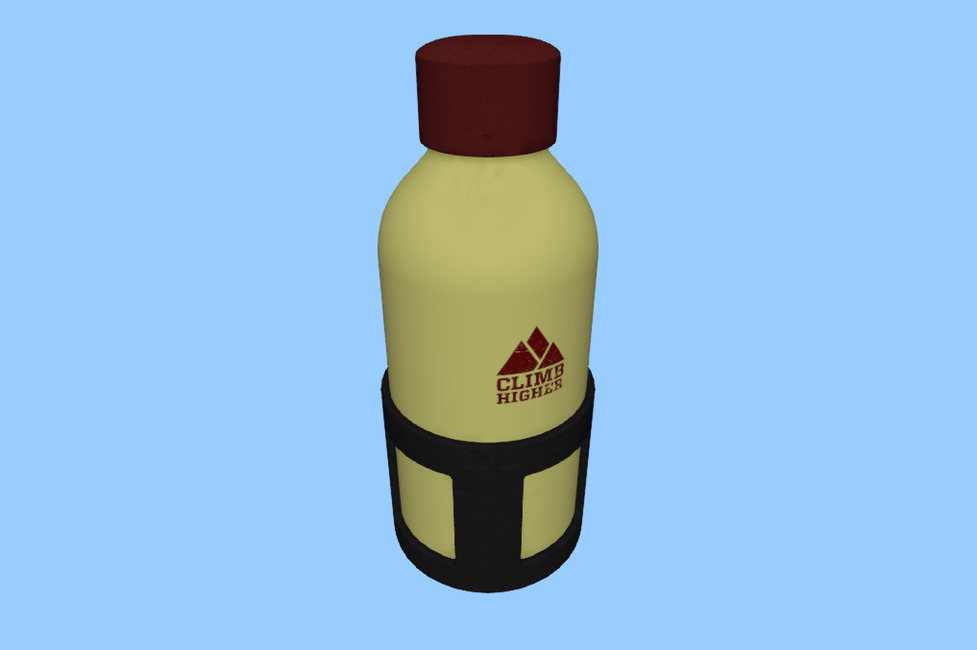
This lightweight model is well-suited for low-end devices.
Physically based rendering
The default PbrShadingModelPbrShadingModelPbrShadingModel applies physically based rendering.
It shades glTF metallic-roughness materials
using both the map’s light and its reflection map, so surfaces pick up highlights and reflections that match the environment
they’re in.
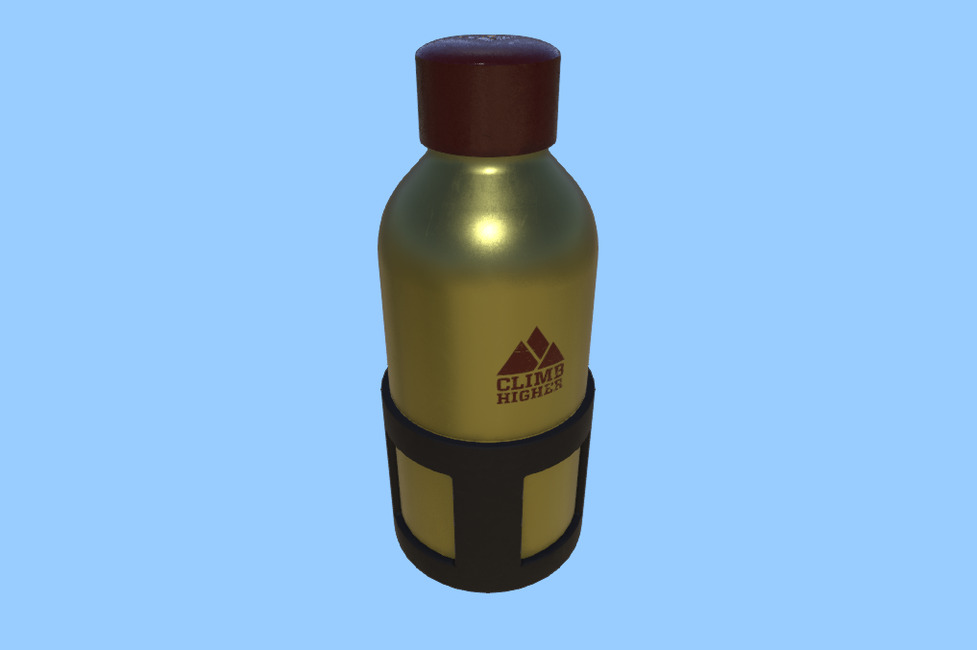
glTF 2.0 uses metallic-roughness as its material model, so a PbrShadingModelPbrShadingModelPbrShadingModel shades a glTF asset physically.
The format also defines defaults for materials that don’t explicitly contain metallic and roughness values: fully rough and
fully metallic.
The one exception is a material that declares itself unlit, which is left unshaded. See Unlit materials for more information.
What PBR shading needs
PBR shading is driven by two independent light contributions, and you need at least one of them:
-
Direct lighting comes from the map’s light effectlight effectlight effect. The
MapMapMapis lit by default with a headlight. This contribution is therefore present out of the box. -
Image-based lighting (IBL) comes from the reflection map of the environment map effectenvironment map effectenvironment map effect. The
MapMapMapinstalls a neutral gray reflection map by default. This contribution is therefore present out of the box as well.
Both are enabled on a PbrShadingModelPbrShadingModelPbrShadingModel by default, and you turn either on or off with
directionalLightingdirectionalLightingdirectionalLighting and
imageBasedLightingimageBasedLightingimageBasedLighting.
PBR needs at least one source of light to be computed, so disabling both isn’t allowed.
Instead, you can turn off the PBR shading model with null for no shading model, or a SimpleShadingModelSimpleShadingModelSimpleShadingModel.
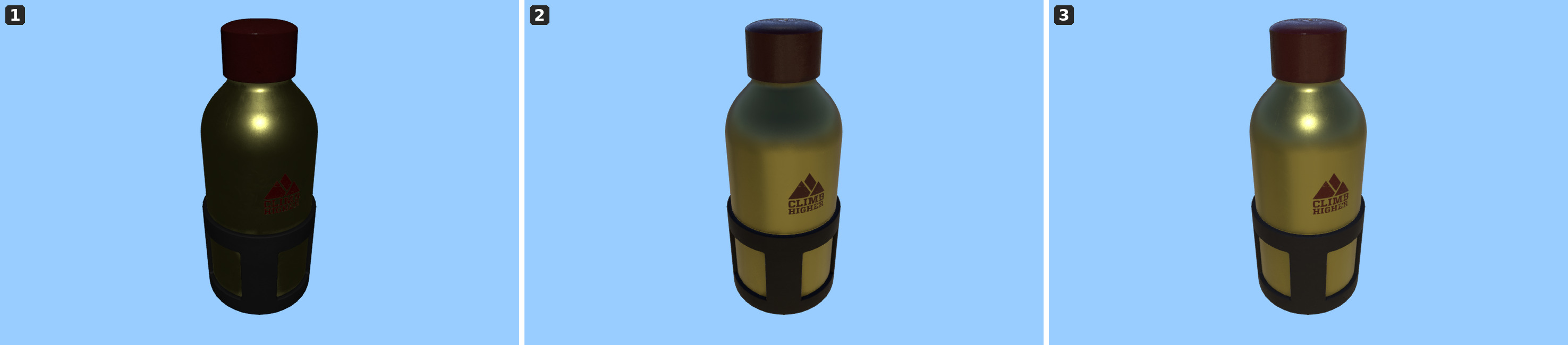
The two contributions do different work. Direct lighting gives the object its highlights and its sense of a light direction, while image-based lighting fills the shadowed side and supplies the reflections that tell the viewer what the surface is made of.
|
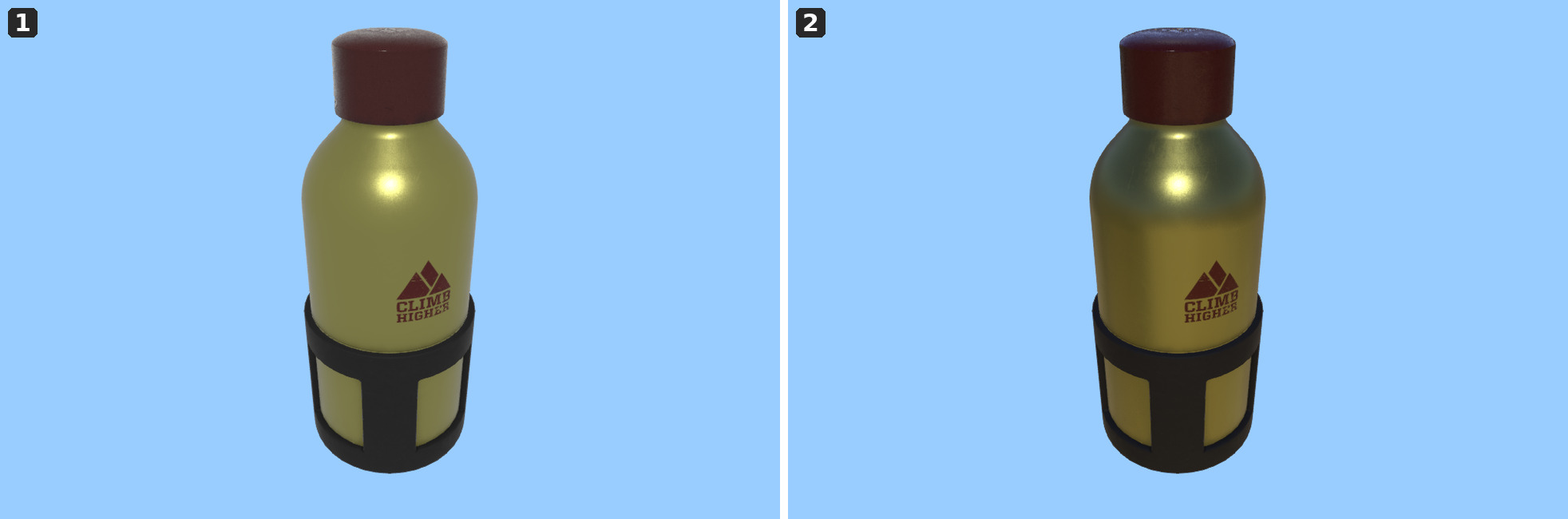
PBR materials may still look flat with only the default neutral gray reflection map, because a large part of what makes a surface read as metal or as polished is what it reflects. For a convincing result, set a reflection map of your own, ideally from HDR imagery. See environment map effect for how to do that, and for a worked example of the same model in different environments. |
Tuning a material
The metallic and roughness values of an asset come from its materials. You adjust them for the whole object with a factor and an offset, applied in that order, as this pseudo-code shows:
final = clamp(material * factor + offset, 0, 1)
A factor scales the variation the material already has, while an offset shifts it.
Setting the factor to 0 and the offset to a fixed value overrides the material entirely and gives the whole object a uniform one.
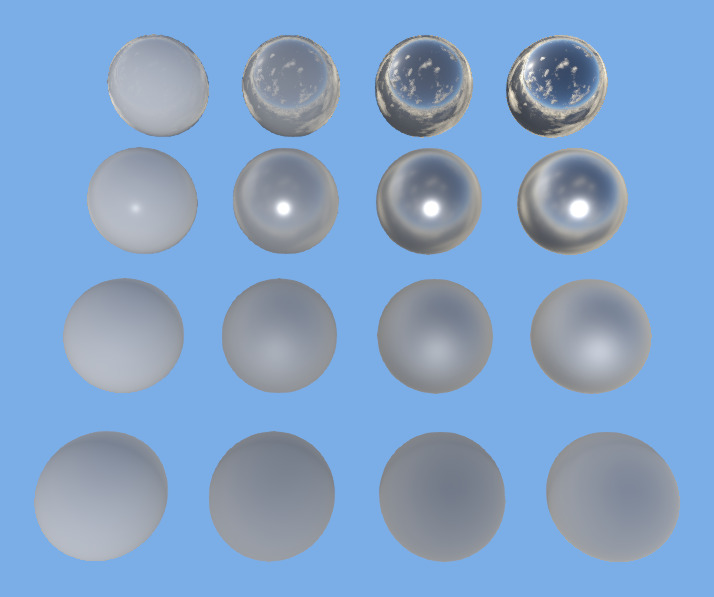
The metallic value determines whether a surface reflects its environment like metal or scatters light like plastic, stone,
or fabric.
The roughness value decides how sharp those reflections and highlights are: a smooth surface mirrors the environment, while
a rough one blurs it into
a soft sheen.
Roughness matters at every metallic value, including 0: the leftmost column in the metallic and roughness overview figure goes from glossy with a sharp highlight to fully matte.
lightIntensitylightIntensitylightIntensity is a separate brightness adjustment on PBR-shaded
surfaces. A linear multiplier on the resulting shading: 1 leaves the shading unchanged, 2 makes it twice as bright, and 0.5 half as
bright. A value of 0 removes the PBR light contribution entirely.
// Polished metal: override the asset to fully metallic and perfectly smooth.
auto polishedMetal = PbrShadingModel::newBuilder().metallic(0.0, 1.0).roughness(0.0, 0.0).build();

// Matte surface: halve the asset's roughness variation and lift it into the rough half of the range.
auto matte = PbrShadingModel::newBuilder().roughness(0.5, 0.5).build();

// Make a dark asset twice as bright, and drop the reflections coming from the map's reflection map.
auto brightenedWithoutReflections = PbrShadingModel::newBuilder().lightIntensity(2.0).imageBasedLighting(false).build();
// Polished metal: override the asset to fully metallic and perfectly smooth.
var polishedMetal = PbrShadingModel.NewBuilder().Metallic(0.0, 1.0).Roughness(0.0, 0.0).Build();
// Matte surface: halve the asset's roughness variation and lift it into the rough half of the range.
var matte = PbrShadingModel.NewBuilder().Roughness(0.5, 0.5).Build();
// Make a dark asset twice as bright, and drop the reflections coming from the map's reflection map.
var brightenedWithoutReflections = PbrShadingModel.NewBuilder().LightIntensity(2.0).ImageBasedLighting(false).Build();// Polished metal: override the asset to fully metallic and perfectly smooth.
var polishedMetal = PbrShadingModel.newBuilder().metallic(0.0, 1.0).roughness(0.0, 0.0).build();
// Matte surface: halve the asset's roughness variation and lift it into the rough half of the range.
var matte = PbrShadingModel.newBuilder().roughness(0.5, 0.5).build();
// Make a dark asset twice as bright, and drop the reflections coming from the map's reflection map.
var brightenedWithoutReflections = PbrShadingModel.newBuilder().lightIntensity(2.0).imageBasedLighting(false).build();You can combine a PBR material with a BloomStyleBloomStyleBloomStyle to make only the brightest specular
highlights glow.
See the bloom effect.
Unlit materials
A glTF material can carry the
KHR_materials_unlit
extension to declare that it must not be lit at all.
LuciadCPillar honors that: such a material shows only its base color, regardless of what the map’s light and reflection map
do.
Set ignoreUnlitProperty(true)ignoreUnlitProperty(true)ignoreUnlitProperty(true) to ignore the extension and
shade the material like any other PBR material.
That’s useful when the source data declares itself unlit but you want to apply the scene’s lighting to it anyway.