 |
LuciadCPillar 2026.1.01
|
|
LuciadCPillar 2026.1.01
|
Support for styling data on a Map. More...
Topics | |
| complexstrokes | |
| Support for complex stroke linestyles and the patterns used to make them. | |
| expressions | |
| Support for expressions for styling data on a Map. | |
Classes | |
| class | luciad::BloomStyle |
| This class contains styling properties that determine how bloom is applied to individual shapes and objects. More... | |
| class | luciad::FillStyle |
| This class contains styling properties to determine how an area is filled. More... | |
| class | luciad::GaussianSplatsStyle |
| This class contains styling properties to determine how 3D Gaussian splats are painted. More... | |
| class | luciad::LineOfSightStyle |
| Style for line-of-sight (LOS) features. More... | |
| class | luciad::LineStyle |
| This class contains styling properties to determine how a line is painted. More... | |
| class | luciad::MeshStyle |
| This class contains styling properties to determine how a mesh is painted. More... | |
| class | luciad::OnPathLabelStyle |
| This class contains styling properties to determine how a label is placed on a path. More... | |
| class | luciad::ParameterizedFillStyle |
| This class contains styling properties to determine how a parameterized area is filled. More... | |
| class | luciad::ParameterizedLineStyle |
| This class contains styling properties to determine how a parameterized line is drawn. More... | |
| class | luciad::PbrShadingModel |
| Shading model that applies physically based rendering (PBR) to a mesh. More... | |
| class | luciad::PinStyle |
This class contains styling properties that can be used to configure pins for labels, see FeatureCanvas::LabelDrawCommand::pinStyle. More... | |
| class | luciad::PointCloudStyle |
| A class representing how point cloud data should be styled. More... | |
| class | luciad::ProjectedImageryStyle |
| Style for projected imagery: single images, video, and panoramas. More... | |
| class | luciad::RasterStyle |
| Style for rasters. More... | |
| class | luciad::ShadingModel |
| Base class for a shading model that determines how an object, such as a mesh or 3D icon, is shaded. More... | |
| class | luciad::SimpleShadingModel |
| Shading model that applies simple, non-physically-based lighting to a mesh. More... | |
Support for styling data on a Map.
Styles are typically used to style feature data.
|
strong |
An enumeration to describe facet culling used for meshes.
luciad/layers/styles/FacetCullingType.h
| Enumerator | |
|---|---|
| NoCulling | Indicates that facet should not be culled. This will paint a mesh with both its back-face and front-face. |
| BackfaceCulling | Indicates that the back-face of a triangle should not be painted. This facet culling type can improve performance over Back-face culling can have functional benefits as well. If you have a 3D scan of the interior of a building, you can use backface culling to see the interior while your camera is located on the outside of the mesh. |
| FrontfaceCulling | Indicates that the front-face of a triangle should not be painted. This facet culling type can improve performance over It is not very common to cull the front-face of the triangles of your dataset, as it will make your dataset invisible from the intended viewing angle. This facet culling mode can be used in very specialized applications, or in the case when your dataset has inverted normals. |
| BasedOnData | Indicates that you know or assume that the data specifies the ideal face culling mode. If the data does not specify anything, then Use this face culling mode in these cases:
If the culling behavior of your data is not as you expected, you can still override with one of the other options.
|
|
strong |
An enumeration describing when an object should be painted in 3D in relation to other 3D data.
luciad/layers/styles/OcclusionMode.h
See FeatureCanvas::IconDrawCommand::occlusionMode, FeatureCanvas::TextDrawCommand::occlusionMode and FeatureCanvas::GeometryDrawCommand::occlusionMode for details and limitations.
Note that when the occlusion mode is not OcclusionMode::VisibleOnly, features won't be queryable.
| Enumerator | |
|---|---|
| VisibleOnly | Show only the part of a shape that is not obscured by other 3D data. This is the default. |
| AlwaysVisible | Show the entire shape even if behind other 3D data. The shape appears in front of other objects. |
| OccludedOnly | Shows only the part of the shape that is behind other 3D data. You typically use this to display obscured shapes in combination with another style that uses |
|
strong |
An enumeration describing the position of a label wrt a path.
luciad/layers/styles/PathLabelPosition.h
|
strong |
Determines onto which surfaces projected imagery is projected.
luciad/layers/styles/ProjectedImageryTarget.h
The two options are ProjectedImageryTarget::AllSurfaces and ProjectedImageryTarget::ClosestSurface.
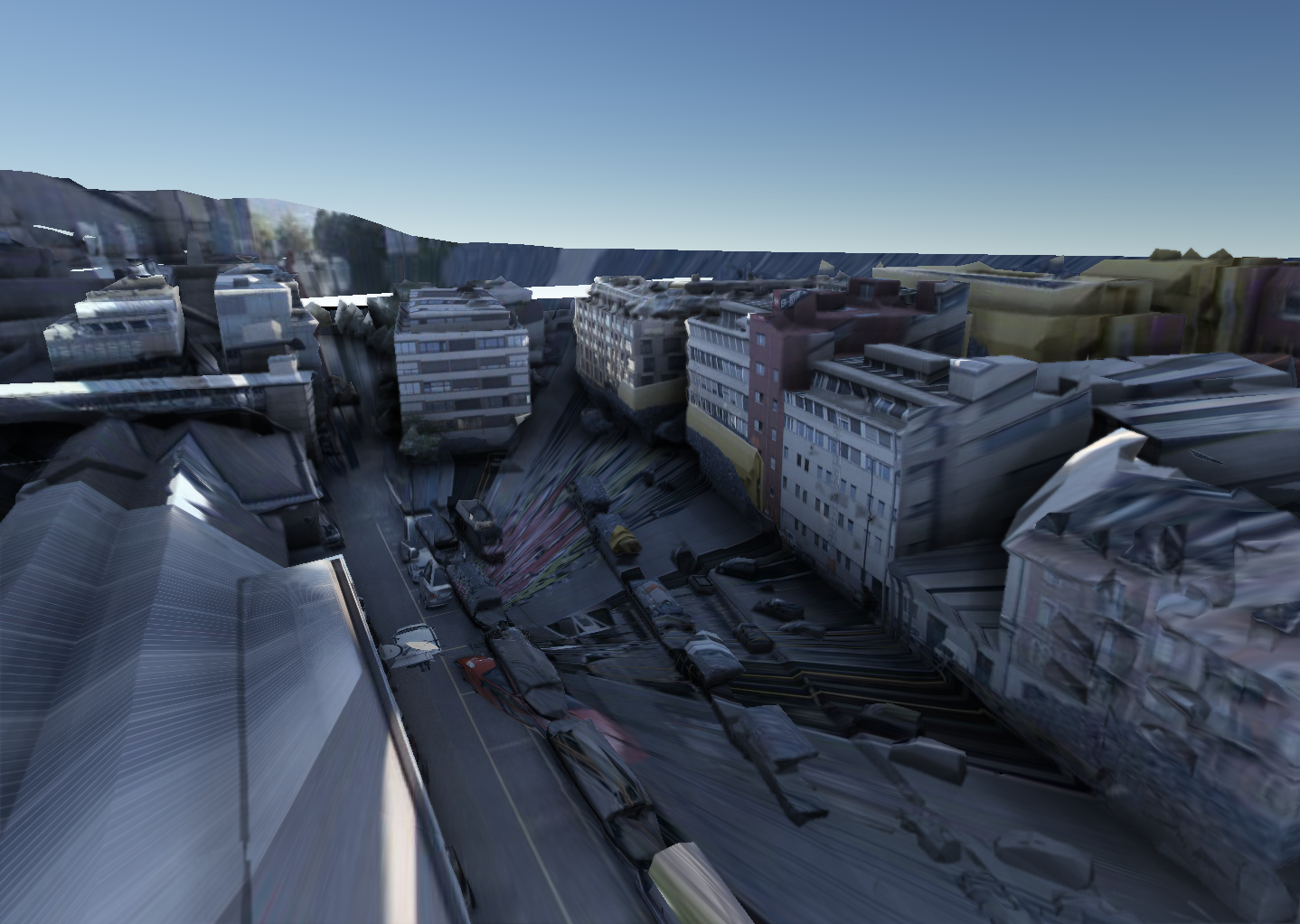
The difference between these is most apparent when the camera is not at a projection position, when transitioning between 2 panoramas or when freely moving the camera for example. In these cases, the camera typically can see things that are not visible in the projection position and thus the imagery does not cover these areas.
When projecting on all surfaces, the resulting view may be somewhat confusing because walls and objects do not block the projection.
When projecting on the closest surface, the geometries in the vicinity of the projection are taken into account. This means that the projection only covers what is actually visible for that projection. For example, if there is a wall in the imagery and that wall is also in the loaded geometry data, the projection will cover the wall but nothing behind the wall. The images below illustrate the difference.
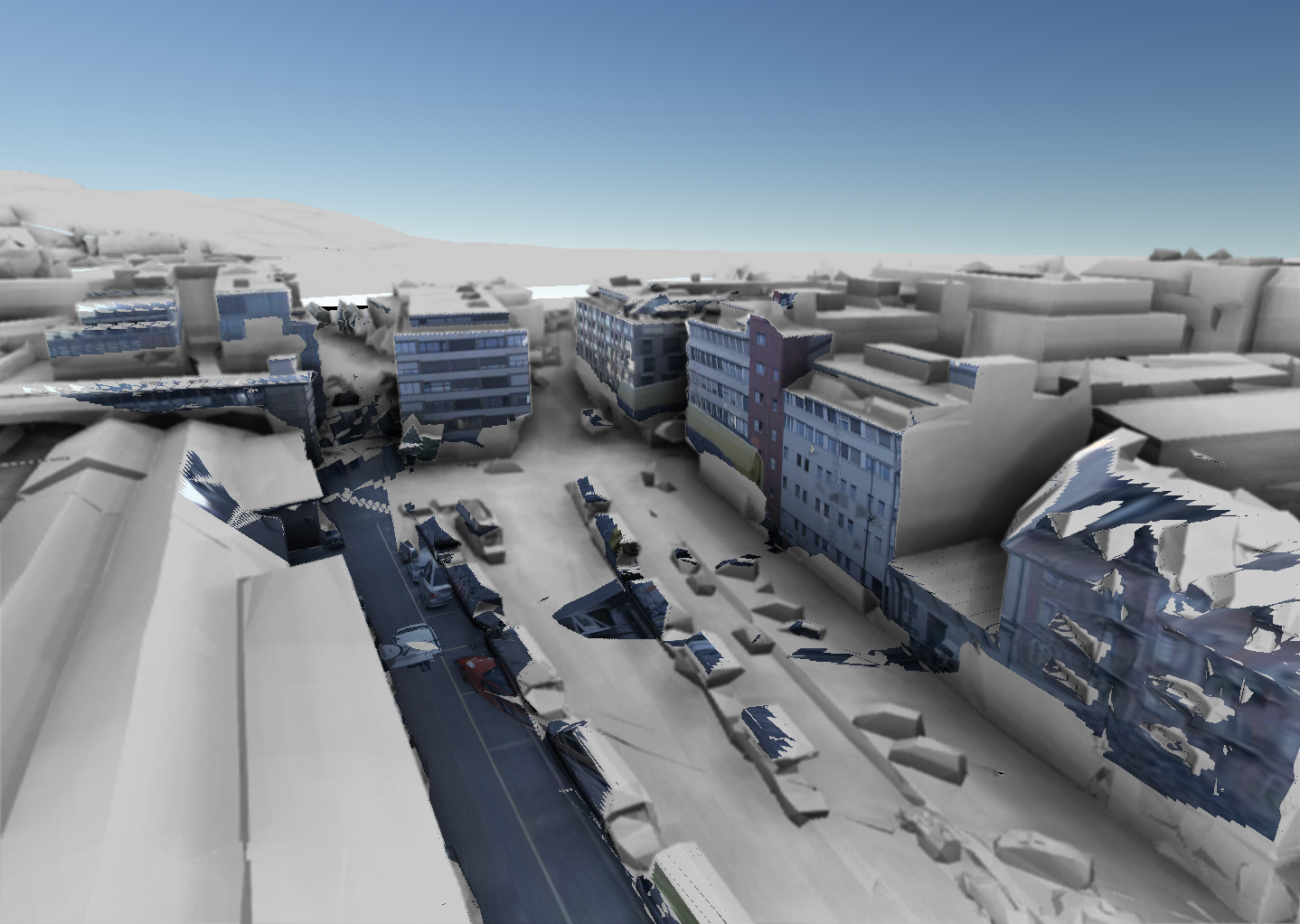
Using ProjectedImageryTarget::ClosestSurface, the projections are painted in 2 distinct steps. This has a consequence for the opacity styling.
ProjectedImageryTarget::ClosestSurface more consistent with the behavior of ProjectedImageryTarget::AllSurfaces. Note that:
ProjectedImageryTarget::ClosestSurface may have a performance impact. ProjectedImageryTarget::ClosestSurface has a fixed, finite accuracy. ProjectedImageryTarget::ClosestSurface may introduce some visual artifacts in some scenarios.  1.14.0