NVG
LuciadRIA offers support for NATO Vector Graphics (NVG), a standard developed by the North Atlantic Treaty Organization (NATO). The NVG standard defines a standardized approach to encode and share battle-space objects and information as overlays on top of geographic maps. NVG data is defined in the XML format and can represent both military and non-military features. To see it in action, you can have a look at LuciadRIA’s NVG sample application.
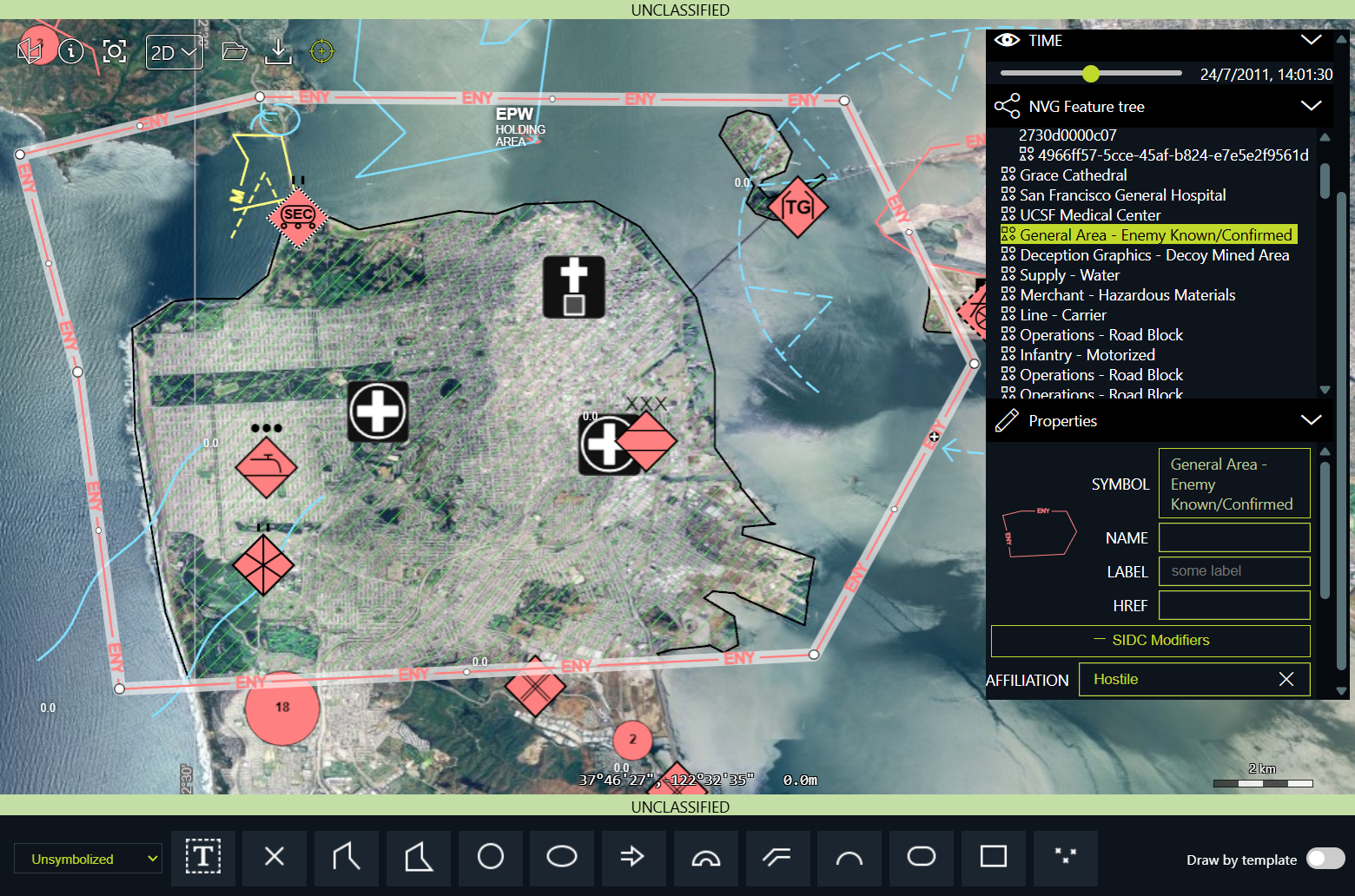
The supported version of the NVG standard is ADatP-4733, Edition A, version 1.
The NVG data format comes in two flavors: full and partial. The partial format is used for streaming purposes, to allow for incremental updates of the battle-space scene.
LuciadRIA allows the decoding of both full and partial NVG XML strings, and provides a framework to create, edit, visualize, and encode NVG features. The following sections provide an overview of the capabilities of the LuciadRIA NVG framework.
NVG XML Structure and corresponding NVGFeatures
NVG elements
The NVG XML structure defines NVG elements, such as points, polylines and arrows, with specific styling. There are two types of NVG elements:
-
Unsymbolized elements, representing a non-military feature with a specific geometry and styling.
Unsymbolized NVG corridor XML string.<nvg:corridor points="0.008437969141064617,0.6393066514687852 0.05448332312336513,0.6355732443891418 0.09119515940655133,0.6575588638581658" width="1981" uri="id1b" label="Civil corridor - filled as area" style="stroke:#e42121;stroke-width:4;stroke-dash:15;fill:#66ff66;fill-opacity:0.5;fill-pattern:Grid"/>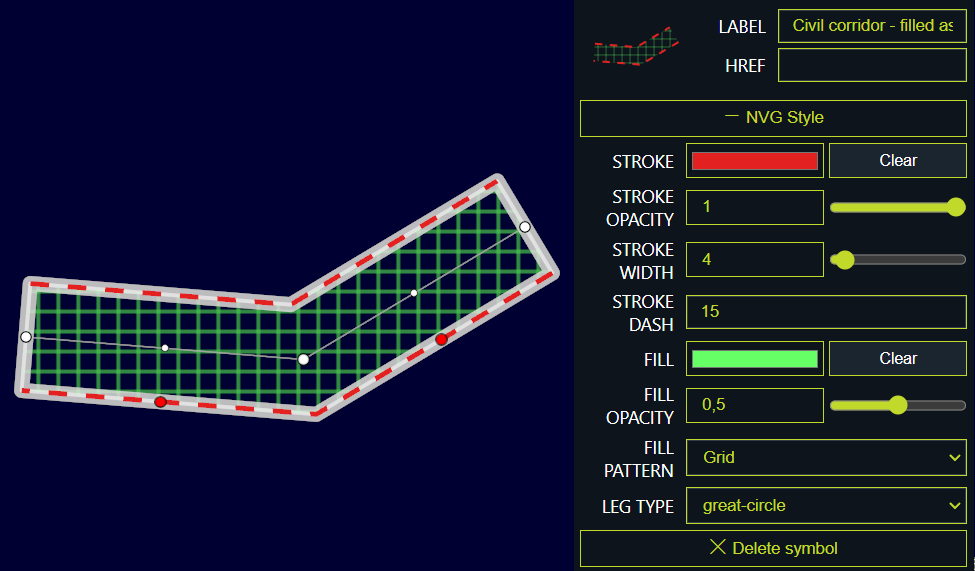 Figure 2. Visualisation of this unsymbolized NVG corridor.
 -
Symbolized elements, representing a
MilitarySymbolExample: a symbolized NVG feature, representing a military symbol.const NVGXML2: string = ` <nvg:corridor points="0.011226767059593065,0.5584228474827716 0.05062223451327433,0.5541344026548672 0.10960153063754553,0.5658057394501068" width="2448" uri="id0a" label="Military corridor (Air Corridor) - geoBuffer - default style" symbol="app06:100325001717010000000000000000" modifiers="AM:1224"/> `;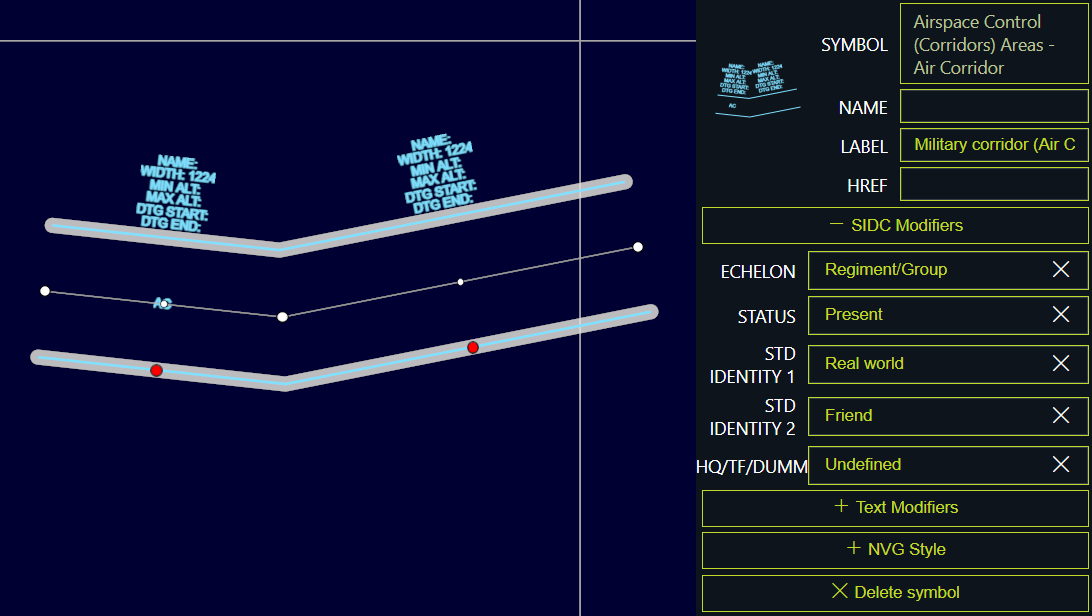 Figure 3. Visualisation of this symbolized NVG corridor.
NVG decoding
Decoding NVG data is the first step in working with NVG features.
LuciadRIA provides API to decode both full and partial NVG data into dedicated LuciadRIA Feature objects:
NVGFeature objects.
You can then visualize these NVGFeature objects on the map.
Decoding full NVG data
To decode full NVG data, you can use the NVGCodec.
NVGCodec to decode full NVG data.
const nvgXMLString = "<xml-fetched-from-file-or-server-location>";
const nvgCursor: Cursor<NVGFeature> = new NVGCodec().decode({
  content: nvgXMLString,
});
Decoding full and partial NVG data from a streaming service
To decode NVG data that originates from a streaming service (ADatP-4733.2), you can use the NVGStreamingDecoder.
These NVG elements have extra attributes to indicate if they’re new or updated.
There’s also a special NVG element to indicate that a feature has been removed from the battle-space scene.
Every streaming session starts with a full "sync" message, which contains the full NVG data.
The NVGStreamingDecoder can also take care of decoding that full NVG data,
and then you can use it to decode the incremental updates.
NVGStreamingDecoder to decode streaming NVG data.
const nvgXMLStreamString = "<xml-fetched-from-streaming-server-location>";
const nvgStreamingDecodeResult: NVGStreamingDecodeResult = new NVGStreamingDecoder().decode({
  content: nvgXMLString,
});
const featuresToAdd: NVGFeature[] = nvgStreamingDecodeResult.addedFeatures;
const featuresToUpdate: NVGFeature[] = nvgStreamingDecodeResult.updatedFeatures;
const featureIdsToDelete: FeatureId[] = nvgStreamingDecodeResult.removedFeatureIds;|
The symbology sample code in |
NVG visualization
To visualize NVGFeature objects on a map, you can use the NVGPainter, which is a LuciadRIA FeaturePainter
dedicated to correctly visualizing both symbolized and unsymbolized NVG features.
Use the createNVGPainter factory function to create an NVGPainter instance.
It accepts an optional NVGPainterConstructorOptions object to customize the painter’s behavior.
You can add the NVGFeature objects you want to visualize to a MemoryStore,
which you can use to configure a FeatureModel.
You can add that model to a FeatureLayer, which you can then add to a RIAMap.
Next, set the NVGPainter as the painter for the FeatureLayer to visualize the NVG features correctly.
NVGPainter to visualize NVGFeatures.
const nvgPainter = createNVGPainter();
const store = new MemoryStore<NVGFeature>();
const model = new FeatureModel(store);
while (nvgCursor.hasNext()) {
  const nvgFeature = nvgCursor.next();
  store.put(nvgFeature);
}
const layer = new FeatureLayer(model, {
  painter: nvgPainter,
});
nvgPainter.invalidateAll();
NVG editing
NVG editing framework for shapes and shape-defining attributes
The NVGEditController is a controller that allows you to edit existing NVG features on the map.
You can use it to edit both symbolized and unsymbolized NVG features.
The controller provides a set of tools to edit different types of NVG features, such as points, polylines, and polygons.
It then uses the NVGEditor to perform the actual editing of the NVG features.
The NVGEditor provides a set of methods to manipulate the geometry and attributes of the NVG features.
NVGEditController.
export function createNVGEditController(layer: FeatureLayer, feature: Feature): NVGEditController {
  // call this with {@link NVGEditController} for the bare-bones controller, no cancel or delete support.
  return new NVGSampleEditController(layer, feature, {
    editor: new NVGEditor(),
    finishOnSingleClick: true
  })
}
For military multi-point features, the NVGEditor uses the same functionality as the MilitarySymbologyEditor.
This means that the editing capabilities for military features are the same as those described in the article
Using the Military Symbology editing framework for tactical graphics.
To format the labels shown during the editing process, you can use the NVGLabelFormattingOptions.
The following sections provide an overview of NVG-specific editing capabilities that aren’t covered in the abovementioned article.
Point and text
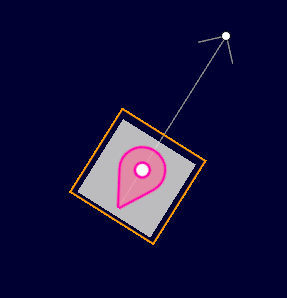
Besides moving them, users can also rotate point and text elements. They can add rotation by right-clicking on the point or text and selecting the "Rotate" option from the context menu. They can then use the handle on the helper arrow to rotate the point or text to the desired angle.
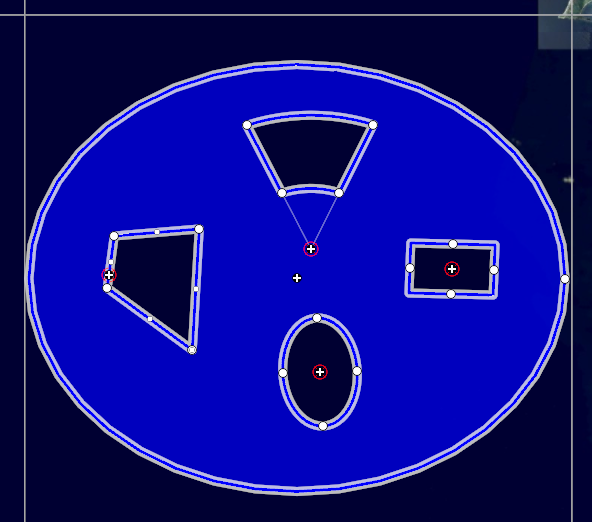
Exclusion zones
To add an exclusion zone to a shape, users can right-click a selected shape and select one of the exclusion zone options from the context menu. They will be able to draw the exclusion zone point-by-point.
Editing these shapes is similar to editing shapes without exclusion zones.
The only difference is that an exclusion zone can only be translated by dragging its designated handle.
This handle, marked with a white cross and enclosed by a red circle in the image below, is referred to as the
"exclusion zone handle" from now on. Unlike the shape itself, users can’t translate the exclusion zone
by dragging an arbitrary point within it. In stead there is a special translate handle for this purpose.
You can change the style of this handle by setting your own translateItemHandleIconStyle.
Users can delete exclusion zones by pressing and holding the Ctrl-key while clicking the exclusion zone handle, or from the context menu opened by right-clicking the exclusion zone handle.
Group
A group element is a container element used to group similar or related content. It can contain any other element, including nested group elements up to an arbitrary depth. The group element has no impact on visualization or editing of its child elements.
To create a group, use the createNVGFeature method with the NVGType GROUP.
This creates an empty group. To add features to that new group, you must use the NVGFeature.move method,
it allows moving a feature from one parent (or the root) to this new group.
const group = createNVGFeature(NVGType.GROUP, {properties: {label: "New group"}});
for (const feature of nvgFeatures) {
  if (feature.canMove(group)) {
    // move all the features you want in the group to the new group,
    // child-parent relations are updated automatically
    const oldParent = feature.move(group);
    model.put(feature); // re-put the feature to notify the model its parent changed
    if (!!oldParent) {
      model.put(oldParent); // re-put the old parent to notify the model its children changed
    }
  }
}
model.put(group);
Composite
A composite element is a container element used to create a single graphic from multiple drawing primitives. A composite can contain non-container graphic children only. You must treat it as a whole, because the composite can override styling of the children.
To create a composite, use the createNVGFeature method with the NVGType COMPOSITE.
This creates an empty composite. To add features to that new composite, you must use the NVGFeature.move method,
it allows moving a feature from one parent (or the root) to this new composite.
const composite = createNVGFeature(NVGType.COMPOSITE, {properties: {label: "New composite"}});
for (const feature of nvgFeatures) {
  if (feature.canMove(composite)) {
    // move all the features you want in the group to the new group,
    // child-parent relations are updated automatically
    const oldParent = feature.move(composite);
    model.put(feature); // re-put the feature to notify the model its parent changed
    if (!!oldParent) {
      model.put(oldParent); // re-put the old parent to notify the model its children changed
    }
  }
}
model.put(composite);
Altitude
Certain shapes can have a minAltitude and maxAltitude attribute. This code snippet is an example of how to set these attributes on a shape:
if ((firstFeature.properties.canHaveAltitude) &&
    !ShapeType.contains(shape.type, ShapeType.EXTRUDED_SHAPE)) {
  contextMenu.addItem({
    label: "Add altitude",
    action: function() {
      const feature = contextMenuInfo.objects[0];
      const baseShape = contextMenuInfo.objects[0].shape.copy();
      const height = (1.0 / map.mapScale[0]) / 50;
      const oldShape = feature.shape.copy();
      const newShape = createExtrudedShape(baseShape.reference, baseShape, height / 10.0, height);
      feature.shape = newShape.copy();
      contextMenuInfo.layer.model.put(feature);
      //Make this action undoable
      addChangeShapeUndoable(map, contextMenuInfo.layer, feature, oldShape, newShape, "add altitude");
    }
  });
}
Once a shape has a minAltitude and maxAltitude, those altitudes can be edited by moving the altitude handles up and down.
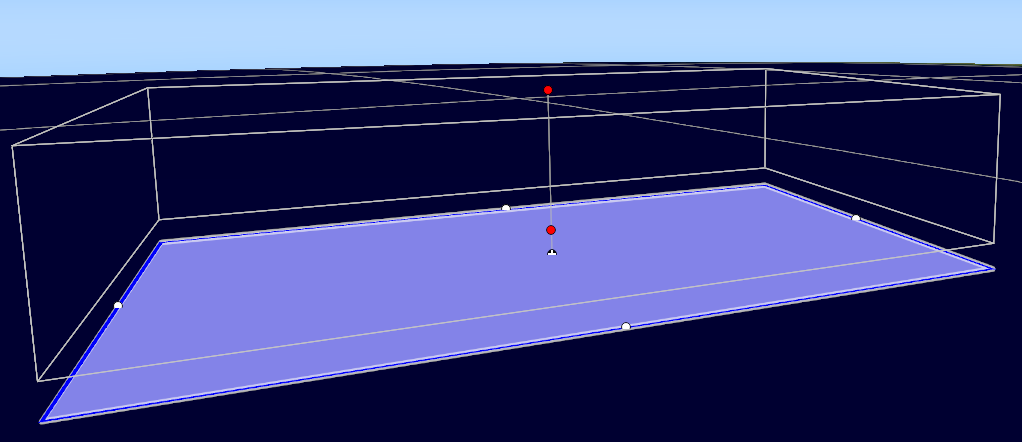
You visualize altitudes on a map through the option visualizeExtrudedShapes in NVGPainterConstructorOptions.
It defaults to false. When creating the NVGPainter, you can enable this option to visualize the altitudes on the map.
Remember that altitudes only make sense on a 3D map and are therefore visible on a 3D map only.
The altitudes are visualized as a 3D extrusion of the shape, with the minAltitude and maxAltitude
defining the bottom and top of the extrusion.
NVG properties editing
To show property changes made at runtime on the features, you can listen to "EditProperty" events.
If you want to listen to undo and redo events, you can use an UndoManager.
// update UI when EditController edits properties
if (editController) {
  const handle = editController.on("EditProperty", (event) => {
    if (editController.feature === feature && event.status === EditPropertyStatus.FINISHED) {
      const symbol = generateSymbol();
      updateFields(symbol);
    }
  });
  handles.push(handle);
}

// update UI when undoables edit properties
const handleUndoRedo = (undoable: Undoable) => {
  if (undoable instanceof ChangePropertyUndoable && undoable.feature === feature) {
    const symbol = generateSymbol();
    updateFields(symbol);
  }
};

const undoHandle = undoManager.on("Redo", handleUndoRedo);
const redoHandle = undoManager.on("Undo", handleUndoRedo);

handles.push(undoHandle);
handles.push(redoHandle);

return () => {
  for (const handle of handles) {
    handle.remove();
  }
};
NVG creation
NVGCreateController is a controller that allows you to create new NVG features on the map.
You can use it to create both symbolized and unsymbolized NVG features.
The controller provides a set of tools to create different types of NVG features, such as points, polylines and polygons.
NVGCreateController.
export function createNVGCreateController(symbology: HierarchicalSymbology | null,
                                          symbolCode: string | null,
                                          createByTemplate: boolean = false,
                                          editor: NVGEditor = new NVGEditor(),
                                          defaultModifiers: { [key: string]: string } | undefined,
                                          defaultProperties: FeatureProperties & { type: Exclude<NVGType, NVGType.CONTENT_ITEM | NVGType.GROUP | NVGType.COMPOSITE> },
                                          undoManager?: UndoManager) {
  const options: NVGCreateControllerConstructorOptions = {
    nvgType: defaultProperties.type,
    symbology: symbology === null ? undefined : symbology,
    symbolCode: symbolCode === null ? undefined : symbolCode,
    defaultModifiers: defaultModifiers,
    defaultProperties: defaultProperties,
    createByTemplate: createByTemplate,
    editor: editor,
    finishOnSingleClick: true
  };

  //  Extends the creation controller to select feature after creation
  const nvgCreateController = new class NVGCreateControllerWithSelection extends NVGCreateController {
    override async onObjectCreated(map: RIAMap, layer: FeatureLayer, feature: Feature): Promise<void> {
      await super.onObjectCreated(map, layer, feature);
      if (isNVGFeature(feature)) {
        // add a timeStamp to the newly created feature.
        feature.properties.timeStamp = new Date().toISOString();
      }
      map.selectObjects([{layer, objects: [feature]}]);
    }
  }(options);

  // wrap the NVGCreateController in a SampleCreateController
  // for undo and cancellation support
  return new SampleCreateController(nvgCreateController, undoManager ?? SAMPLE_UNDO_MANAGER);
}
NVG encoding
Similar to its decoding API, LuciadRIA provides API to encode NVGFeature objects to both full and partial NVG data.
Encoding full NVG data
To encode a full collection of NVGFeature objects back into an NVG XML string, you can use the NVGCodec.
NVGCodec to encode to full NVG data.
const nvgCodec = new NVGCodec();
let nvgEncodeOptions: NVGCodecEncodeOptions = {
  prettyPrint: true,
};
const encodeResult = nvgCodec.encode(nvgCursor, nvgEncodeOptions);
const nvgXML = encodeResult.content;
Encoding full and partial NVG data for streaming
To encode NVGFeature objects for a streaming service (ADatP-4733.2), you can use the NVGStreamingEncoder.
Two encode methods are available, encodeSync for encoding all features, and encodeUpdate to encode the changes only.
NVGStreamingEncoder to encode to streaming NVG data.
const featureChanges: NVGFeatureChange[] = [];

for (const change of this._pendingChanges.values()) {
  switch (change.type) {
  case "remove":
    featureChanges.push({featureId: change.featureId, type: "remove", parentId: change.parentId});
    break;
  case "update": {
    const feature = this._store.get(change.featureId);
    if (feature) {
      featureChanges.push({featureId: feature.id!, type: "update", feature});
    }
    break;
  }
  case "add": {
    const feature = this._store.get(change.featureId);
    if (feature) {
      featureChanges.push({featureId: feature.id!, type: "add", feature});
    }
    break;
  }
  default: {
    throw new Error(`Unexpected NVG feature change type ${change.type}`);
  }
  }
}

const result = this._encoder.encodeUpdate({
  ...this._options,
  previousState: this._currentState,
  changes: featureChanges,
});

this._currentState = result.currentState;
this._pendingChanges.clear();