Features of the new tactical graphics editing framework
This page explains how to migrate from the old way of editing military symbology tactical graphics
to the new way, using the new MilitarySymbologyEditController and MilitarySymbologyCreateController. Both controllers use a new MilitarySymbologyEditor. You must use this new editing framework only if:
-
You want to edit or create tactical graphics.
-
You want to edit or create regular
Polylineshapes for your tactical graphics.
|
If you’re just displaying tactical graphics, or if you’re creating and editing custom shapes instead of |
Before LuciadRIA 2026.0, editing tactical graphics didn’t require dedicated controllers nor a dedicated editor.
You had to use the default ShapeEditor, which offered limited editing options. In the new framework, however, you can add editing labels and
handles for changing modifiers, and make use of other editing features specific to military symbology.
|
With the introduction of this dedicated editing framework, some of the old functionality that was previously
provided to the |
What breaks if you don’t migrate?
A tactical graphic is a symbol represented by a set of points, called a point list, and
stored inside a Feature as Polyline shape. This means that if you use default editing instead of the new editing framework, you’re editing these shapes through
the PointListEditor.
This editor allows users to move the points of the shape freely, and to add or remove points.
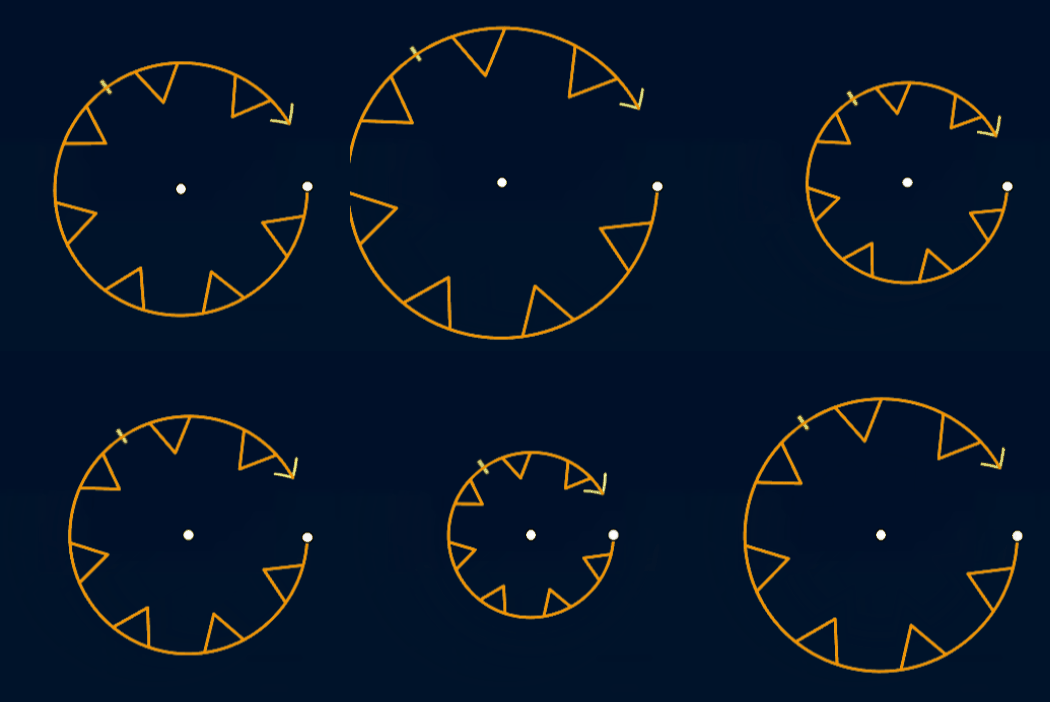
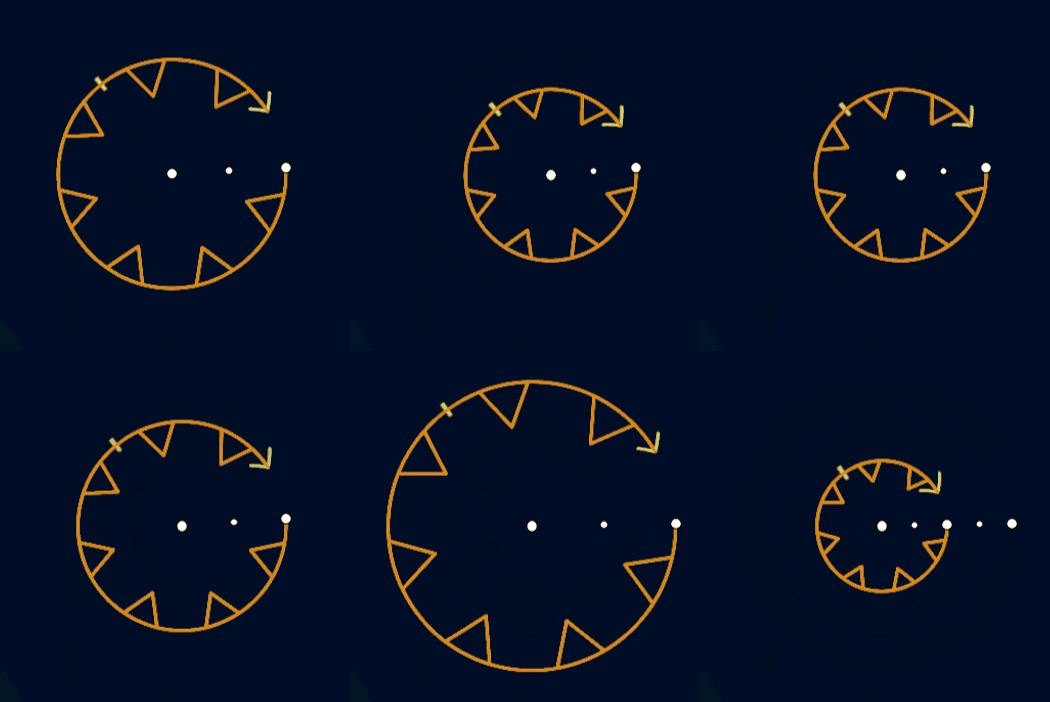
However, when your point list represents a tactical graphic, that’s not always the desired behavior, as shown in this example:
The isolate symbol is a circular symbol represented by a point list containing 2 points.
The first point represents the center of the symbol, and the second point represents a point on the circumference.
When you edit this symbol with the default PointListEditor, which happens if you don’t set the dedicated edit
controller on the map, you can move both points freely. Moving the first point won’t move the entire symbol,
but it will move only the center point, with the effect that the radius of the circle changes.
Also, you can add more points while editing with the default editor. However, the painter for this symbol only takes into
account
the first two points, so when you add points, the circular shape appears to shrink.
How to use the new Military Symbology editing framework
Editing tactical graphics
To edit tactical graphics, you must set the MilitarySymbologyEditController on the map.
When creating this controller, you must provide a
symbologyAccessor and a symbolCodeAccessor to allow the MilitarySymbologyEditor
to decide under the hood which of its delegates is best suited for editing the specific tactical graphic.
See this code snippet for an example of how to create this controller:
MilitarySymbologyEditor. (from samples/symbology/common/core/controller/ControllerFactory.ts)
export function createMilsymEditController(layer: FeatureLayer,
                                           feature: Feature,
                                           editor: MilitarySymbologyEditor = new MilitarySymbologyEditor()): MilitarySymbologyEditController {
  // call this with {@link MilitarySymbologyEditController} for the bare-bones controller, no cancel or delete support.
  return new MilitarySymbologySampleEditController(layer, feature, {
    editor: editor,
    symbologyAccessor: {
      get: (f: Feature) => f.properties["symbology"]
    },
    symbolCodeAccessor: {
      get: (f: Feature) => f.properties["code"]
    },
    symbolModifierAccessor: {
      get: (f: Feature) => f.properties["modifiers"],
      set: (f: Feature, value: { [key: string]: string }) => {
        f.properties["modifiers"] = value;
      }
    },
    finishOnSingleClick: true
  })
}
After creating this controller, you must activate it on the RIAMap.
MilitarySymbologyEditController on the RIAMap. (from samples/symbology/common/core/controller/ControllerFactory.ts)
        const editController =
            createMilsymEditController(contextMenuInfo.layer as FeatureLayer, firstFeature, editor);
        addEditUndoSupport(editController);
        map.controller = editController;
Extra options for the customization of the styling of editing handles and labels are available. For more information, see Using the Military Symbology editing framework for tactical graphics.
Creating tactical graphics
To create tactical graphics, you must use the MilitarySymbologyCreateController, which also uses the new
MilitarySymbologyEditor under the hood.
This controller needs the symbology and symbol code for the new feature it’s about to create.
It can also accept a createByTemplate option to allow for the creation of tactical graphics based on a template.
See this code snippet for an example of how to create this controller:
MilitarySymbologyCreateController.
export function createMilsymCreateController(shapeType: ShapeType,
                                             symbology: HierarchicalSymbology,
                                             symbolCode: string,
                                             modifiers: { [key: string]: string } = {},
                                             createByTemplate: boolean = false,
                                             editor?: MilitarySymbologyEditor): MilitarySymbologyCreateController {
  return new MilitarySymbologyCreateController({
    shapeType: shapeType,
    symbology: symbology,
    symbolCode: symbolCode,
    defaultModifiers: modifiers,
    symbologyAccessor: {
      get: (f: Feature) => f.properties.symbology,
      set: (f: Feature, symbology: HierarchicalSymbology) => {
        f.properties.symbology = symbology;
      }
    },
    symbolCodeAccessor: {
      get: (f: Feature) => f.properties.code,
      set: (f: Feature, code: string) => {
        f.properties.code = code;
      }
    },
    symbolModifierAccessor: {
      get: (f: Feature) => f.properties.modifiers,
      set: (f: Feature, modifiers: { [key: string]: string }) => {
        f.properties.modifiers = modifiers;
      }
    },
    createByTemplate: createByTemplate,
    editor: editor, // defaults to "new MilitarySymbologyEditor()" if undefined
    finishOnSingleClick: true
  });
}
After creating this controller, you must activate it on the RIAMap, in the same way as you activate the edit controller.
This controller offers the same options as the MilitarySymbologyEditController for the styling customization of handles and labels during the editing of the newly created tactical graphic.
Note that these options are only used if you’re creating tactical graphics by template, because in that case, the creation
step is
immediately followed by an editing step, handled by the same controller, to adjust the newly created feature.
What to expect from the MilitarySymbologyEditor after migration
Creating tactical graphics by template
Before the introduction of the MilitarySymbologyEditor, you could only create multi-point tactical graphics in
a point-by-point manner. The new editor also supports creation by template for all tactical graphics.
To activate template creation for a feature, use the createByTemplate parameter
while creating the MilitarySymbologyCreateController.
Editing modifiers
Some tactical graphics have modifiers that users can adjust by moving specific handles during editing.
For example, the "APP_6D Manoeuvre Lines - Infiltration Lane" symbol has a "width" modifier,
indicating the width of the lane.
When you provide a ModifierAccessor through the MilitarySymbologyEditControllerConstructorOptions,
a handle is visualized during editing. It allows users to adjust this width modifier by dragging the handle.
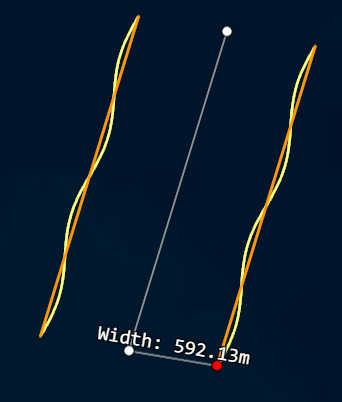
MilitarySymbologyEditor can be used to edit the "width" modifier of the "APP_6D Manoeuvre Lines - Infiltration Lane" symbol.
Editing with customizable handles
When users are editing tactical graphics, the editing framework shows handles that let them adjust specific parts of the symbol. The handles serve a variety of goals:
-
Helper handles show some helper lines during editing.
-
Handles to insert and delete points.
-
Handles for modifier editing.
-
Handles to add or remove parts of the shape.
All these handles have a default styling, but you can customize their styling by providing the appropriate shape
and icon styles through the MilitarySymbologyEditControllerConstructorOptions and
MilitarySymbologyCreateControllerConstructorOptions.
Editing with customizable labels
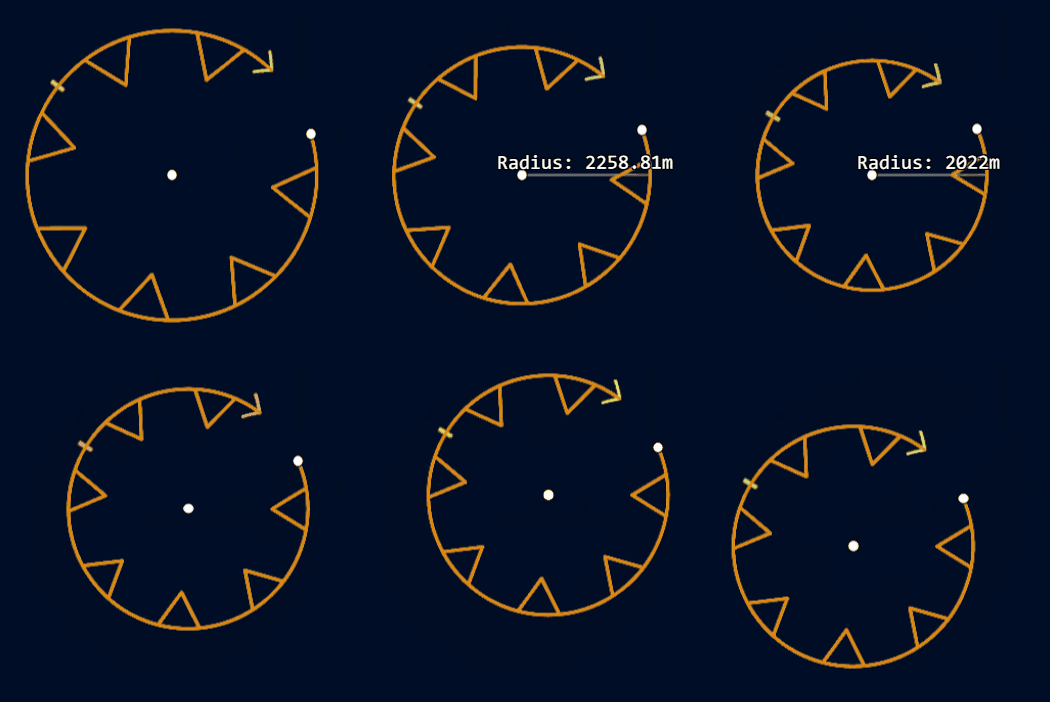
When users are editing of certain tactical graphics, the editing framework displays informative labels to indicate the current value of specific modifiers. For example, when you edit circular symbols, a label shows the current radius as you adjust it.
You can adapt these labels in several ways through the MilitarySymbologyEditControllerConstructorOptions and
MilitarySymbologyCreateControllerConstructorOptions. You can change the styling of these labels through CSS, you can change the way they are formatted, or you
can disable them completely.
Customizing the MilitarySymbologyEditor.
Both the MilitarySymbologyEditController and
the MilitarySymbologyCreateController already provide a default MilitarySymbologyEditor.
If you want to customize the behavior of the editor, you can provide your own custom
implementation of the MilitarySymbologyEditor.
You can do so by providing a militarySymbologyEditor option when creating either of the two controllers.
Full overview of capabilities
For a full overview of the implemented capabilities of the Military Symbology editing framework, refer to Using the Military Symbology editing framework for tactical graphics.
|
The Military Symbology and Military Symbols overview samples demonstrate how to use the
|