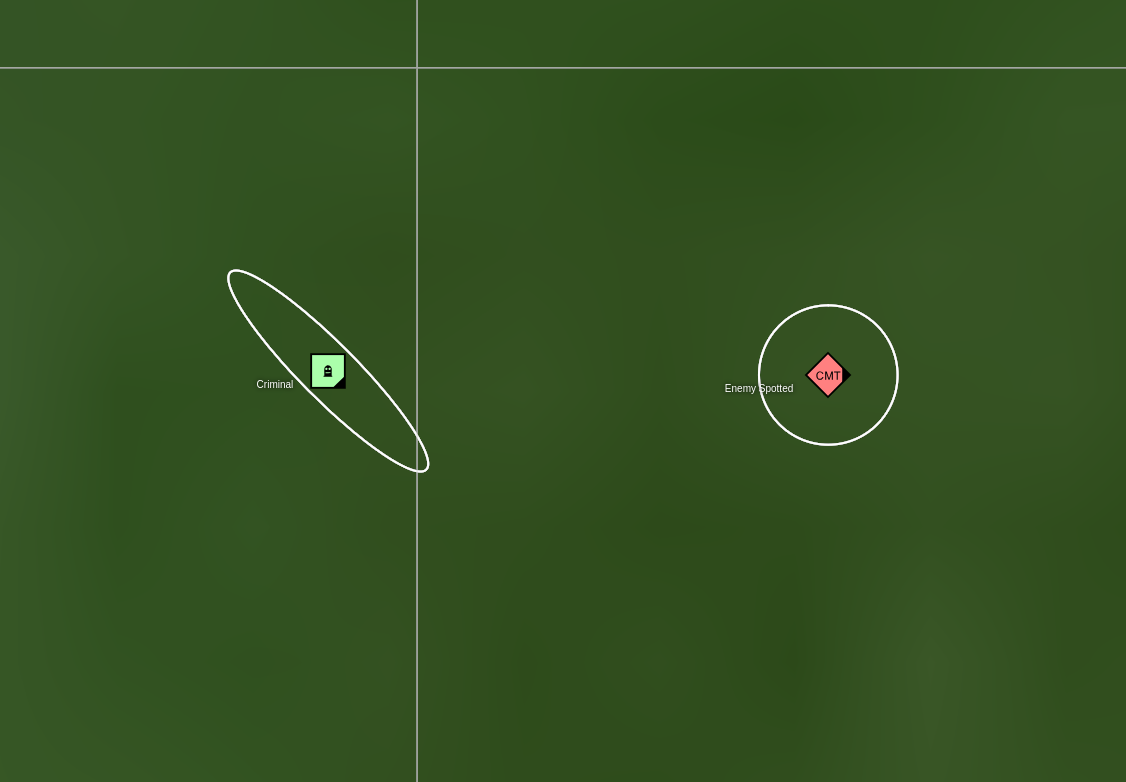
The area of uncertainty indicator, introduced in APP-6E, represents the area where an object is most likely to be. This is based on the symbol’s last reported position and the reporting accuracy of the sensor that detected the object. There are two ways to visualize this area of uncertainty: as a circle or as an ellipse.
|
The area of uncertainty indicator can only be applied to icon symbols, it cannot be applied to tactical graphic symbols. |
Visualizing the area of uncertainty as a circle
To visualize the area of uncertainty as a circle, you only need to set a value for the areaOfUncertaintyPrimaryRadius property of a 'MilitarySymbol'.
If only the areaOfUncertaintyPrimaryRadius is set, the value will be interpreted as the radius of the circle of uncertainty, measured in meters.
The snippet below demonstrates how to set the primary radius to visualize the area as a circle.
// First, we create the modifiers for the APP-6E symbol.
const modifiers = {
  standardIdentity2: "Hostile",
  uniqueDesignation: "Enemy Spotted",

  // we set the primary radius of the area of uncertainty to 5000 meters to create a circle around the icon
  areaOfUncertaintyPrimaryRadius: "5000"
};

// Create a Combat Mission Team icon, with the created modifier
const hostileCombatMissionTeam = new MilitarySymbol(APP_6E, "160060000011010000000000000000", modifiers);
Visualizing the area of uncertainty as an ellipse
To visualize the area of uncertainty as an ellipse, you can use three properties of MilitarySymbol:
-
areaOfUncertaintyPrimaryRadius -
areaOfUncertaintySecondaryRadius -
attitude
Setting the primary and secondary radii
The areaOfUncertaintyPrimaryRadius represents the radius along the latitude axis of the ellipse,
while the areaOfUncertaintySecondaryRadius represents the radius along the longitude axis.
Both values are expressed in meters. If both modifiers are set, the ellipse will be drawn with these radii.
If only the areaOfUncertaintySecondaryRadius is set, the value will be ignored.
Applying rotation
The attitude property is used to rotate the ellipse to align its axes in the desired direction.
This property is expressed as an azimuth in degrees, measured clockwise from true north.
The snippet below demonstrates how to set the primary and secondary radii, as well as the azimuth, to visualize the area of uncertainty as a rotated ellipse.
// First, we create the modifiers for the APP-6E symbol.
const modifiers = {
  standardIdentity2: "Neutral",
  uniqueDesignation: "Criminal",

  // we set the primary radius and secondary radius of the area of uncertainty to create an ellipse around the icon
  areaOfUncertaintyPrimaryRadius: "5000",
  areaOfUncertaintySecondaryRadius: "1000",
  // rotate the ellipse 45 degrees
  attitude: "45"
};

// First, we create an APP-6E object.
// Create a Criminal icon
const criminal = new MilitarySymbol(APP_6E, "160060000013010000000000000000", modifiers);
Visualizing the area of uncertainty
Once you have set the appropriate modifiers for the area of uncertainty,
you can control the line color and width of the area of uncertainty using the color and lineWidth properties of MilSymStyle.
Once you have created your symbol and style, you can proceed to visualize the indicator as you normally would.
Below is an example of what the area of uncertainty might look like when visualized as a circle and an ellipse.