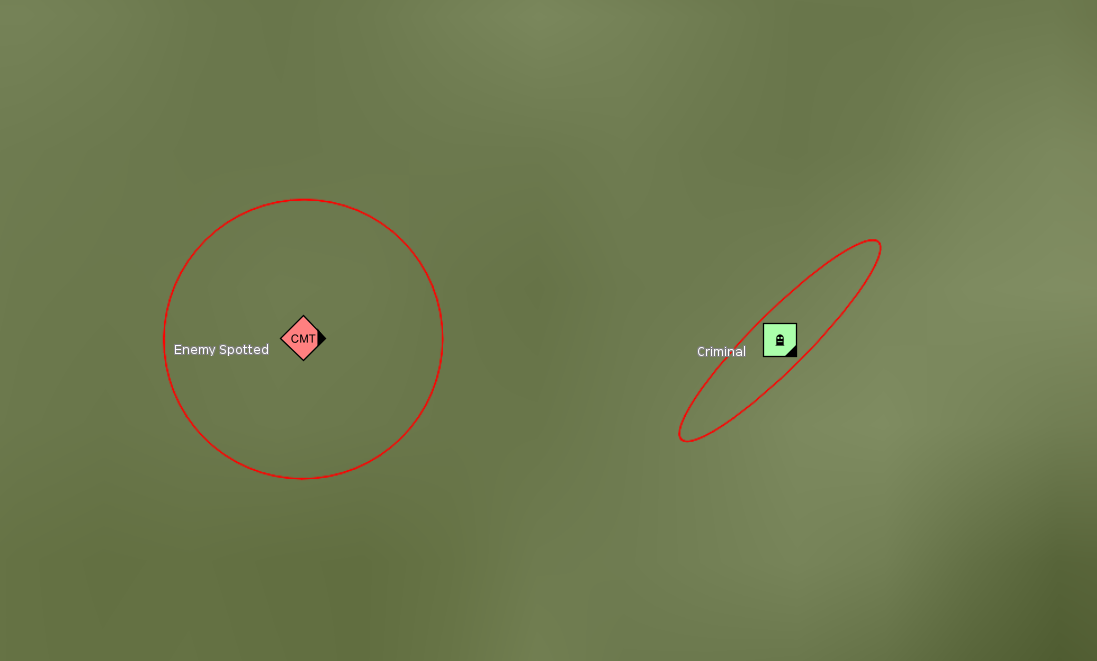
The area of uncertainty indicator, introduced in APP-6E, represents the area where an object is most likely to be. This is based on the symbol’s last reported position and the reporting accuracy of the sensor that detected the object. There are two ways to visualize this area of uncertainty: as a circle or as an ellipse.
|
The area of uncertainty indicator can only be applied to icon symbols, it cannot be applied to tactical graphic symbols. |
Visualizing the area of uncertainty as a circle
To visualize the area of uncertainty as a circle, you only need to set a value for the ILcdAPP6ACoded.sAreaOfUncertaintyPrimaryRadius text modifier.
This can be achieved using the TLcdEditableAPP6AObject.putTextModifier method.
If only the sAreaOfUncertaintyPrimaryRadius is set, the value will be interpreted as the radius of the circle of uncertainty, measured in meters.
The snippet below demonstrates how to set the primary radius to visualize the area as a circle.
// First, we create an APP-6E object.
// Create a Combat Mission Team icon
TLcdEditableAPP6AObject hostileCombatMissionTeam = new TLcdEditableAPP6AObject("140060000011010000000000000000", ELcdAPP6Standard.APP_6E);
hostileCombatMissionTeam.putTextModifier(ILcdAPP6ACoded.sStandardIdentity2, "Hostile");
hostileCombatMissionTeam.putTextModifier(ILcdAPP6ACoded.sUniqueDesignation, "Enemy Spotted");

// Move the icons to it's likely position
hostileCombatMissionTeam.move2D(4.45, 50.46);

// Then we set the primary radius of the area of uncertainty to 5000 meters to create a circle around the icon
hostileCombatMissionTeam.putTextModifier(ILcdAPP6ACoded.sAreaOfUncertaintyPrimaryRadius, "5000");
Visualizing the area of uncertainty as an ellipse
To visualize the area of uncertainty as an ellipse, you can use three modifiers:
-
ILcdAPP6ACoded.sAreaOfUncertaintyPrimaryRadius -
ILcdAPP6ACoded.sAreaOfUncertaintySecondaryRadius -
ILcdAPP6ACoded.sAttitude
Setting the primary and secondary radii
The sAreaOfUncertaintyPrimaryRadius represents the radius along the latitude axis of the ellipse,
while the sAreaOfUncertaintySecondaryRadius represents the radius along the longitude axis.
Both values are expressed in meters. If both modifiers are set, the ellipse will be drawn with these radii.
If only the sAreaOfUncertaintySecondaryRadius is set, the value will be ignored.
Applying rotation
The ILcdAPP6ACoded.sAttitude modifier is used to rotate the ellipse to align its axes in the desired direction.
This property is expressed as an azimuth in degrees, measured clockwise from true north.
The snippet below demonstrates how to set the primary and secondary radii, as well as the azimuth, to visualize the area of uncertainty as a rotated ellipse.
// First, we create an APP-6E object.
// Create a Criminal icon
TLcdEditableAPP6AObject criminal = new TLcdEditableAPP6AObject("140060000013010000000000000000", ELcdAPP6Standard.APP_6E);
criminal.putTextModifier(ILcdAPP6ACoded.sStandardIdentity2, "Neutral");
criminal.putTextModifier(ILcdAPP6ACoded.sUniqueDesignation, "Criminal");

// Move the icons to it's likely position
criminal.move2D(4.32, 50.85);

// Then we set the primary and secondary radii of the area of uncertainty to create an ellipse around the icon
criminal.putTextModifier(ILcdAPP6ACoded.sAreaOfUncertaintyPrimaryRadius, "5000");
criminal.putTextModifier(ILcdAPP6ACoded.sAreaOfUncertaintySecondaryRadius, "1000");
// rotate the ellipse 45 degrees
criminal.putTextModifier(ILcdAPP6ACoded.sAttitude, "45");
Visualizing the area of uncertainty
Once you have set the appropriate modifiers for the area of uncertainty,
you can control the line color and width of the area of uncertainty using a TLcdMilitarySymbolStyle.
Once you have created your symbol and style, you can proceed with visualizing the symbol as you normally would.
The indicator will automatically appear according to the defined modifiers.
Below is an example of what the area of uncertainty might look like when visualized as a circle and an ellipse.
// Create a model and add the symbols
TLcdVectorModel app6Model = new TLcdVectorModel(new TLcdGeodeticReference(), new TLcdModelDescriptor());
app6Model.addElement(hostileCombatMissionTeam, ILcdModel.NO_EVENT);
app6Model.addElement(criminal, ILcdModel.NO_EVENT);

// Create and configure the military symbol style
TLcdMilitarySymbolStyle militarySymbolStyle = TLcdMilitarySymbolStyle.newInstance();
militarySymbolStyle.setLabelEnabled(ILcdAPP6ACoded.sLocationLabel, false);
militarySymbolStyle.setLabelColor(Color.WHITE);
militarySymbolStyle.setColor(Color.RED);
militarySymbolStyle.setLineWidth(2);

// Create the layer to visualize the model
ILspInteractivePaintableLayer app6Layer = TLspAPP6ALayerBuilder.newBuilder()
                                                               .model(app6Model)
                                                               .defaultStyle(militarySymbolStyle)
                                                               .build();
// Create a 3D view
EventQueue.invokeLater(() -> {
  ILspAWTView view = TLspViewBuilder.newBuilder()
                                    .viewType(ILspView.ViewType.VIEW_3D)
                                    .buildAWTView();

  // Add background layer
  view.addLayer(createBackgroundLayer());
  // Add APP-6 military symbols layer
  view.addLayer(app6Layer);

  // Display the view in a frame
  JFrame frame = new JFrame("Area Of Uncertainty");
  frame.add(view.getHostComponent(), BorderLayout.CENTER);
  frame.setSize(350, 350);
  frame.setVisible(true);
  frame.setDefaultCloseOperation(JFrame.EXIT_ON_CLOSE);

  FitUtil.fitOnLayers(frame, view, false, view.getLayer(1));
});